Fast & Keyrious LLC
Call 821-203-4949
How to pair a smart lock to your phone after installation
Instead of manually checking your door every time you leave, pair your smart lock to your phone through the manufacturer’s supported app, complete any required calibration, and test access before relying on it. Keep the door open during setup so a pairing or alignment problem does not turn into a lockout.
TL;DR
To pair smart lock to phone, use the exact model’s supported app and owner setup instructions.
Bluetooth pairing and remote access are different; test each supported connection separately.
Keep the door open during enrollment, calibration, and your first lock-and-unlock test.
Fastkeyrious handles residential locksmith needs; confirm the requested service directly with the technician.
Why this matters
A smart lock has two separate jobs: moving the locking mechanism and accepting an authorized command. Successful phone pairing does not prove the bolt fits the strike plate. A working thumb turn does not prove your phone has permission to operate the lock.
Test the hardware first, then the connection, then everyday access. That order separates an installation problem from an app problem without unnecessary resets.
For residential locksmith needs, Fastkeyrious connects you directly with the technician rather than a dispatch center. Ask about the specific physical lock issue; app enrollment and account recovery belong with the lock manufacturer’s instructions and support.
This 2026 guide covers the setup sequence, not a universal button sequence. Smart-lock apps, enrollment methods, and connection requirements differ by model. Follow the instructions for the hardware you actually installed.
Before you start
Identify the exact lock and supported app. Find the model on the packaging, manual, or manufacturer’s label. Have the setup code or enrollment information ready if the instructions require it. Download the app identified by the manufacturer, not an app with a similar name.
Prepare access and a fallback. Use an account authorized to administer the lock, enable the phone permissions requested for setup, and install batteries according to the manual. Keep an existing working key or another confirmed entry method with you. Do not assume a keypad code already works.
Check for previous ownership before resetting anything. A previously used lock can remain associated with another owner’s account. A hardware reset does not necessarily remove that association. Resolve account ownership through the manufacturer’s process before attempting enrollment.
If you rent or manage the property, confirm authorization before changing the lock’s configuration. For an office, identify who controls the door and the account. Permission to enter a suite is not automatically permission to change its access settings.
Choose the connection your lock actually supports
Your 2026 setup starts with the model’s connection requirements, not with whichever wireless option appears on your phone. Use this comparison to understand the workflow, then check the manual for the supported arrangement.
Bluetooth connection
Best for: Nearby phone access
What it does: Connects a compatible phone directly to the lock within wireless range
Limitation to check: Local operation does not establish access from away from home
Wi-Fi connection
Best for: Supported remote access
What it does: Connects a compatible lock or its required bridge to your home network
Limitation to check: Network compatibility and account setup must match the manufacturer’s requirements
Supported smart-home platform
Best for: Households using a compatible home-control system
What it does: Adds the lock to a supported platform for authorized control
Limitation to check: Additional hardware, permissions, or a separate enrollment process can be required
These are connection workflows, not interchangeable upgrades. A Bluetooth lock does not gain Wi-Fi support because you change a phone setting. Likewise, adding a lock to its manufacturer’s app does not automatically enroll it in every smart-home platform.
Use the simplest supported connection that meets your actual access needs. Nearby phone control and remote control solve different problems.
Phone and account preparation
Confirm the setup account
Open the manufacturer’s supported app and sign in using the account that will administer the lock. Complete any required account verification before starting device enrollment.
Check whether the lock is new, already enrolled to your account, or assigned to someone else. For a previously used lock, follow the manufacturer’s transfer procedure rather than trying repeated resets.
Confirm that you have permission to add devices. An invited user account can have fewer privileges than the owner’s account.
Expected result: You can access the supported app with an account authorized to enroll or manage the lock. No unresolved ownership message blocks setup.
Choose the administrator deliberately. If an installer enrolls the lock under a personal account, the property owner can face an account-transfer problem later. Agree on ownership before anyone scans the setup code.
Prepare the phone
Turn on Bluetooth if the lock’s setup instructions require it. On an iPhone, open Settings, select Bluetooth, and enable it.
Allow the app permissions identified in the manufacturer’s setup instructions. Depending on the phone and app, these can include Bluetooth, nearby-device access, or camera access for scanning a code.
Connect the phone to the required home network if the setup process calls for it. Check the lock’s network requirements instead of assuming every router configuration is supported.
Keep the phone near the lock during enrollment. Close unrelated setup attempts on other phones so you can follow one clear session.
Expected result: The app has the permissions and connection it needs to begin setup. The phone is ready to discover or enroll the lock through the supported process.
Do not begin in the phone’s Bluetooth device list unless the manufacturer specifically directs you there. Many smart locks use their app to manage enrollment, authorization, and credentials.
Lock enrollment and door calibration
Verify mechanical operation
Leave the door open and operate the lock manually using its supported physical control. Check that the mechanism moves without being forced.
Inspect the installation against the manufacturer’s directions. Look for anything that interferes with normal movement, including incorrectly positioned components or a door that does not sit properly in the frame.
Stop if the mechanism binds. Correct the installation issue or arrange appropriate help before asking the motor to repeat the same failed movement.
Expected result: The physical lock operates normally with the door open. You have separated mechanical resistance from wireless setup.
An app cannot correct a bolt that catches on the strike plate. If the lock moves freely with the door open but struggles when closed, investigate door and strike alignment rather than repeating phone pairing.
Enroll the lock
Start the app’s device-enrollment process using the manufacturer’s instructions. Select the exact model when the app requires a model selection.
Put the lock into its specified enrollment mode. Use the documented button sequence; do not guess a long press, because some controls also initiate a reset.
Scan or enter the required setup information, if applicable. Check that the code belongs to this lock rather than another device or accessory.
Complete any ownership confirmation and device naming requested by the app. Choose a name that identifies the actual door, especially when an account contains several locks.
Follow the app’s confirmation process before leaving the setup screen. Do not treat a discovered device as an enrolled device until authorization finishes.
Expected result: The correct lock appears in the authorized account, and enrollment completes without an unresolved error.
Exact app labels vary. This guide does not substitute generic button names for the manufacturer’s current interface. In 2026, follow the instructions associated with your model and installed app version.
Complete required calibration
Follow the manufacturer’s calibration or door-direction procedure if the model requires one. Keep the door in the position specified by those instructions.
Stay clear of moving components while the lock completes its setup movement. Stop the process if the mechanism catches or requires force.
Recheck manual operation after calibration. Confirm that the lock still operates normally before moving to a closed-door test.
Expected result: Any required calibration completes, and the lock’s physical movement remains unobstructed.
Some locks use different setup sequences or do not require this step. Do not add a calibration procedure that the manual does not specify.
Access testing and verification
Test nearby phone control
With the door open, send a lock command through the supported app. Watch the physical mechanism rather than relying only on the screen’s status.
Send an unlock command and confirm the mechanism returns to the unlocked position. Complete these 2 open-door tests before testing with the door closed.
With a working backup entry method accessible, close the door and repeat the supported operation. Check that the bolt moves without catching.
Compare the app’s reported state with the physical lock. Investigate any mismatch before relying on notifications or remote status.
Expected result: The phone operates the intended lock, and the lock works both open and closed without binding.
Test remote access separately
Set up the required network connection, bridge, or compatible home platform only if the model supports remote operation.
Follow the manufacturer’s method for testing access away from the local connection. Do not assume a successful nearby Bluetooth command proves remote operation.
Confirm the physical result with an authorized person at the door when practical. Keep backup access available during testing.
Expected result: Supported remote commands work through the intended connection, rather than merely through nearby Bluetooth.
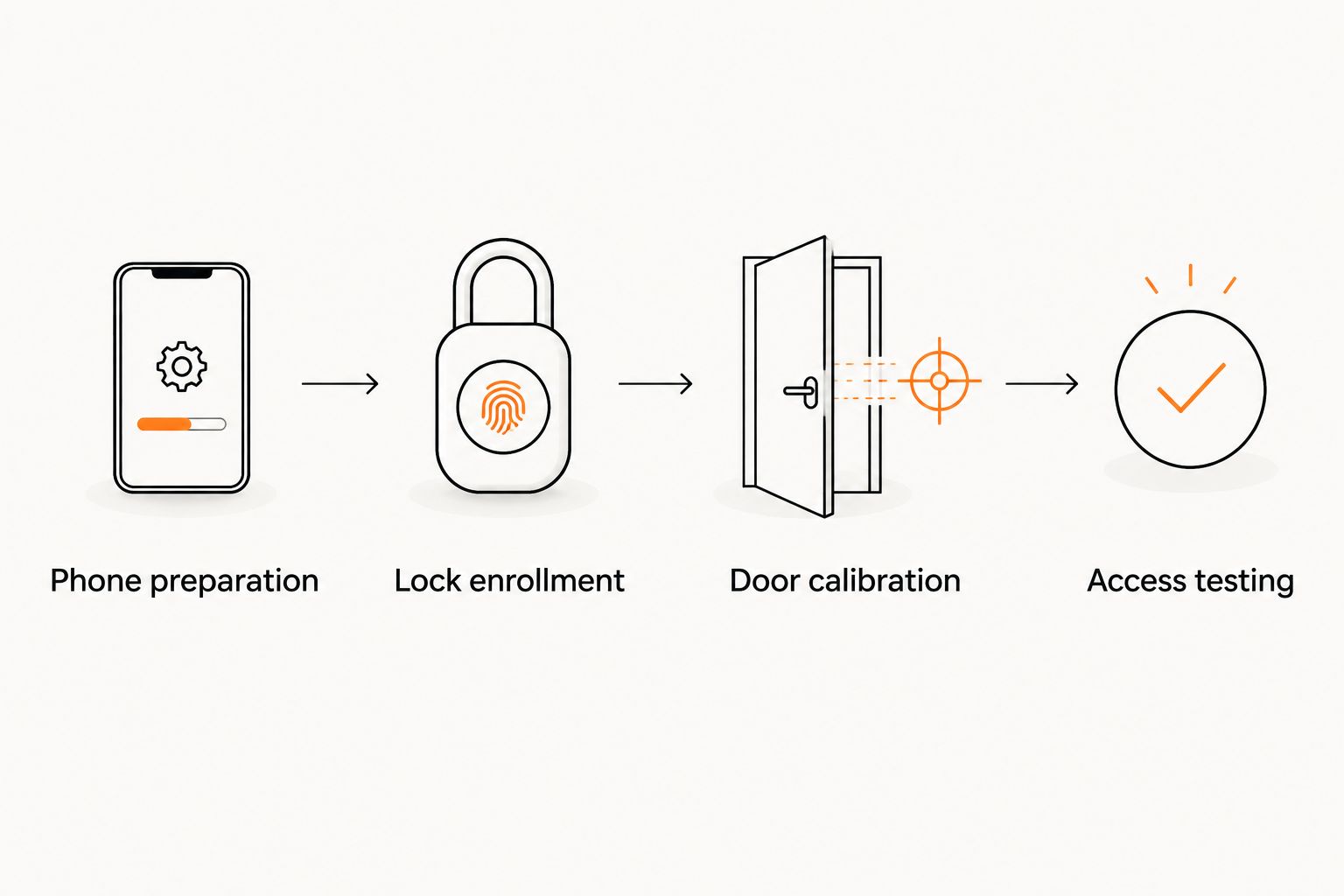
Verify physical operation before depending on phone access.
Second workflow: add another authorized phone
Adding a household member is different from enrolling the lock again. Use the supported invitation process instead of sharing the administrator’s password. Separate accounts make it easier to remove someone’s access without replacing your own credentials.
Open the owner’s account and locate the manufacturer’s user-access controls.
Invite the intended person using the supported method. Confirm the recipient information before sending the invitation.
Assign only the permissions needed. Do not grant administrative control simply because someone needs to unlock the door.
Have the recipient accept the invitation and complete the app’s required steps on their phone.
Test the recipient’s actual access while backup entry remains available. Check any schedule or access restriction that the model supports and you configured.
Expected result: The second phone operates through its own authorized access, without taking over ownership or resetting the lock.
For a replacement phone in 2026, begin with account recovery and the manufacturer’s new-phone instructions. Do not assume a new phone requires a factory reset. If the old phone is lost, review active sessions and access permissions through the supported account-security process.
Troubleshooting
The app cannot find the lock
Confirm the model, supported app, requested phone permissions, and enrollment mode. Keep the phone near the lock and check battery installation against the manual.
A lock outside enrollment mode is not necessarily defective. Restart the setup process as directed, but do not substitute a reset for an undocumented discovery problem.
The app says the lock belongs to another account
Use the manufacturer’s ownership-transfer or recovery process. If appropriate, ask the previous owner to remove the lock through the supported procedure.
Do not keep resetting the hardware in hopes of removing account ownership. Also confirm that you are signed in to the intended account, particularly if you have separate personal and property-management accounts.
Nearby control works, but remote control fails
Check whether the model supports remote access and whether its required connection is configured. Inspect the supported network or bridge setup before changing phone enrollment.
Nearby Bluetooth success proves nearby control. It does not prove the lock has an active internet connection or the correct remote-access permissions.
The app responds, but the bolt catches
Stop repeated motor commands and test the physical mechanism with the door open. Compare open-door operation with closed-door operation to identify an alignment issue.
Do not force the thumb turn or repeatedly run the motor against resistance. Arrange help with the physical installation when normal operation cannot be restored through the manufacturer’s documented checks.
An invited user cannot unlock the door
Confirm that the invitation was accepted under the correct account. Check the assigned permissions and any supported access schedule.
Then test with the recipient’s phone. A working owner account does not prove an invited account has the same authorization.
Customize your workflow
Once pairing works, organize access around people and doors rather than convenience alone. Give each supported user their own authorization, remove access that is no longer needed, and keep administrator credentials private.
Before using automatic locking or arrival-based features, read their specific requirements and test them with backup access available. A feature should match how the door is used. It should not create a new way to get locked out.
For physical residential lock problems, Fastkeyrious is best for customers who want to speak directly with the arriving technician. The company provides mobile locksmith services; this guide does not establish smart-lock app support or compatibility with a particular model.
Service locations require confirmation within the approved 42-mile boundary from Greenville, South Carolina, excluding North Carolina and Wellford. Provide the exact address and requested service rather than assuming every address in a named town qualifies.
FAQ
How do I pair a smart lock to my phone after installation?
Use the exact lock model’s supported app and follow its enrollment instructions. Keep the door open, complete any required calibration, and verify physical operation before relying on phone access.
Should I pair a smart lock in my phone’s Bluetooth settings?
Only use the phone’s Bluetooth pairing screen if the manufacturer directs you to it. Many smart locks handle enrollment and authorization inside their supported app.
Can I use my smart lock without Wi-Fi?
A model that supports direct Bluetooth operation can provide nearby phone access without a Wi-Fi connection to the lock. Remote operation depends on the model’s supported network or smart-home arrangement.
Why does my smart lock work with the door open but not closed?
Check door and strike alignment when the mechanism operates freely with the door open but catches when closed. Phone pairing does not correct mechanical resistance.
Do I have to reset my smart lock when I get a new phone?
Do not reset the lock unless the manufacturer’s new-phone or recovery procedure requires it. Start with your authorized account and follow the supported transfer or sign-in process.
How do I give another person phone access to my smart lock?
Use the manufacturer’s supported user-invitation process. Assign the needed permissions and test the recipient’s access without sharing the administrator’s password.
Can Fastkeyrious help if my smart lock leaves me locked out?
Contact Fastkeyrious to confirm the exact address and requested residential lockout service. The company provides mobile lockout assistance, but this guide does not promise compatibility with every smart lock or assistance with its software account.
One last thing
A paired phone is not a backup entry method. A forgotten password, lost phone, or depleted battery can interrupt your normal routine. Keep 1 verified backup entry method available outside the locked space, and test it before you need it.
Finish your 2026 setup with a simple check: the door operates normally, authorized phone access works, and your backup entry method works independently. Only then should you rely on the new workflow.